


InfoPhone logo
HomeAbout usFAQ
Login/ Signup
Get it on Google PlayDownload on the App Store
InfoPhone logo

Connect. Call. Communicate.Anywhere, Anytime.

Quick Links

  • Home
  • About us
  • Help Centre
  • FAQ's

Features

  • Group Chats
  • Send Reactions
  • Personalised Profiles
  • Share Seamlessly

Also available on

  • Get it on Google Play
  • Download on the App Store

© Enso Webworks Private Limited 2026. All Rights Reserved.

  • About Us
  • Privacy Policy
  • Terms & Conditions
  • Legal & User Agreement
  • Community Guidelines
  • FAQs
Help Centre/Calls/Making a video call

Making a video call

A video call works like a voice call, with the camera on. It needs a steadier connection than voice does.
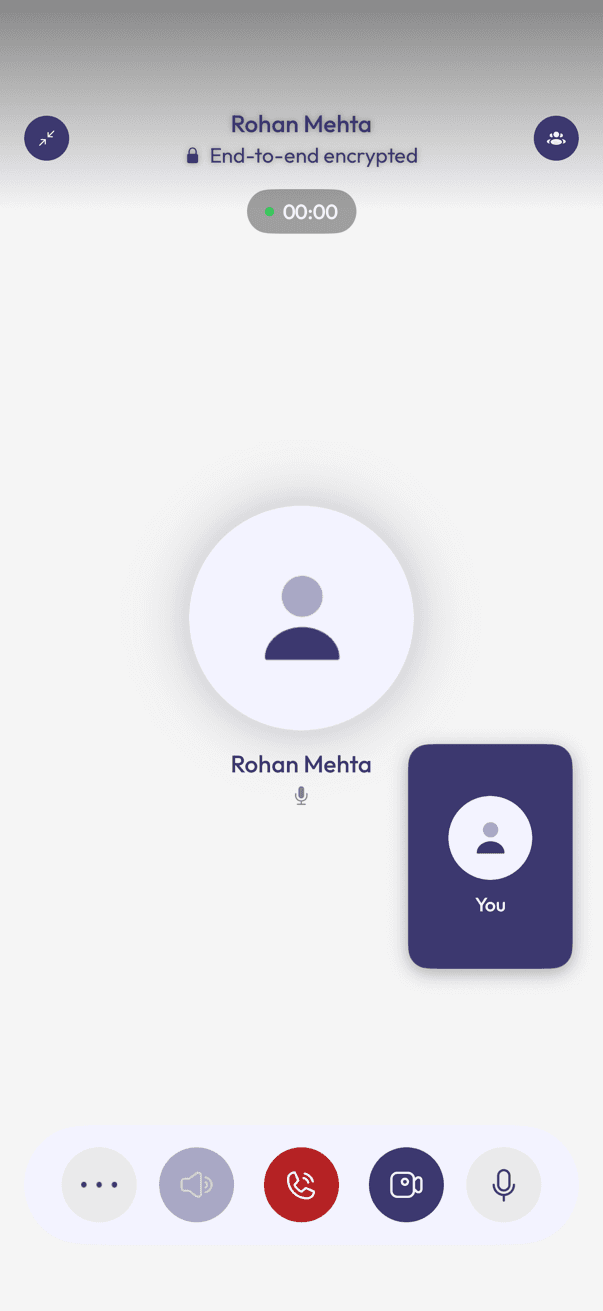
An active video call with a small self-view tile labelled You
During a video call
  1. Open the chat with the person you want to call.
  2. Tap the video icon at the top of the chat.
  3. Allow camera and microphone access the first time you are asked.

During the call

  • Your own video shows in the small You tile; the other person fills the rest of the screen.
  • Tap the camera icon to turn your video off and drop back to voice.
  • Mute yourself with the microphone icon.
  • Tap the red button to end the call.

Related articles

  • Making a voice call
  • Starting a group call
  • Switching between voice and video mid-call

Was this article helpful?

On this page

  • During the call

Was this article helpful?