


Setting up InfoPhone for the first time
Setting up InfoPhone takes a couple of minutes. You need a phone number that can receive an SMS, and a working internet connection.
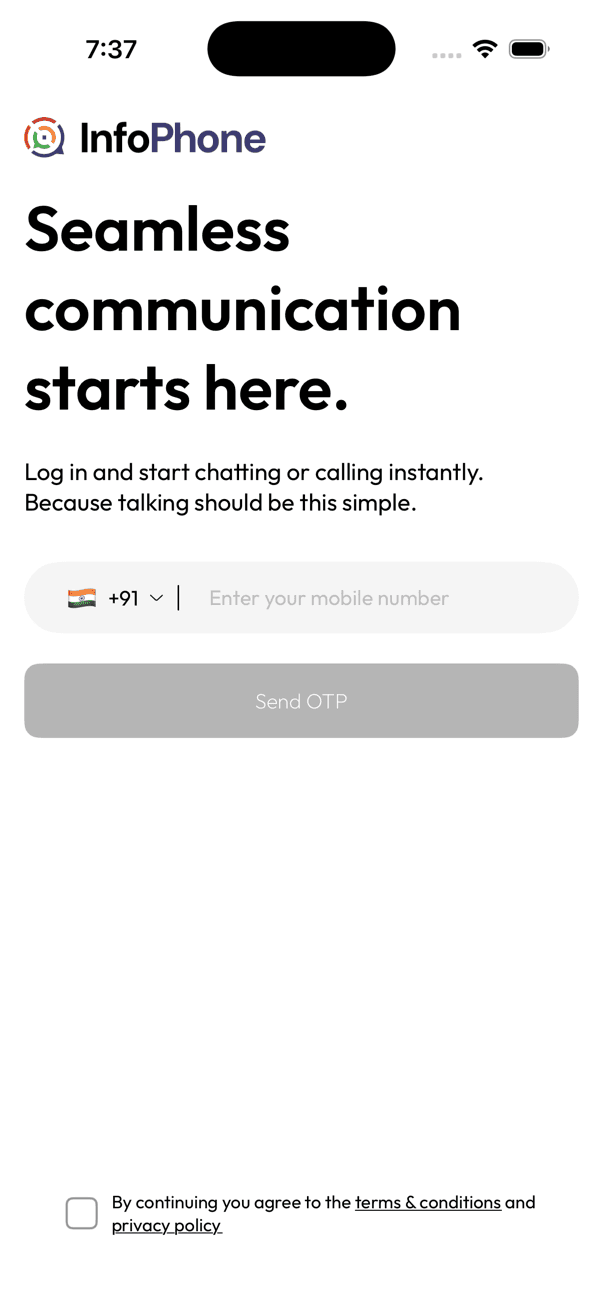
Enter your number
- Open InfoPhone and pick your country code.
- Type the mobile number you want to use.
- Tick the box to accept the terms and the privacy policy.
- Tap Send OTP.
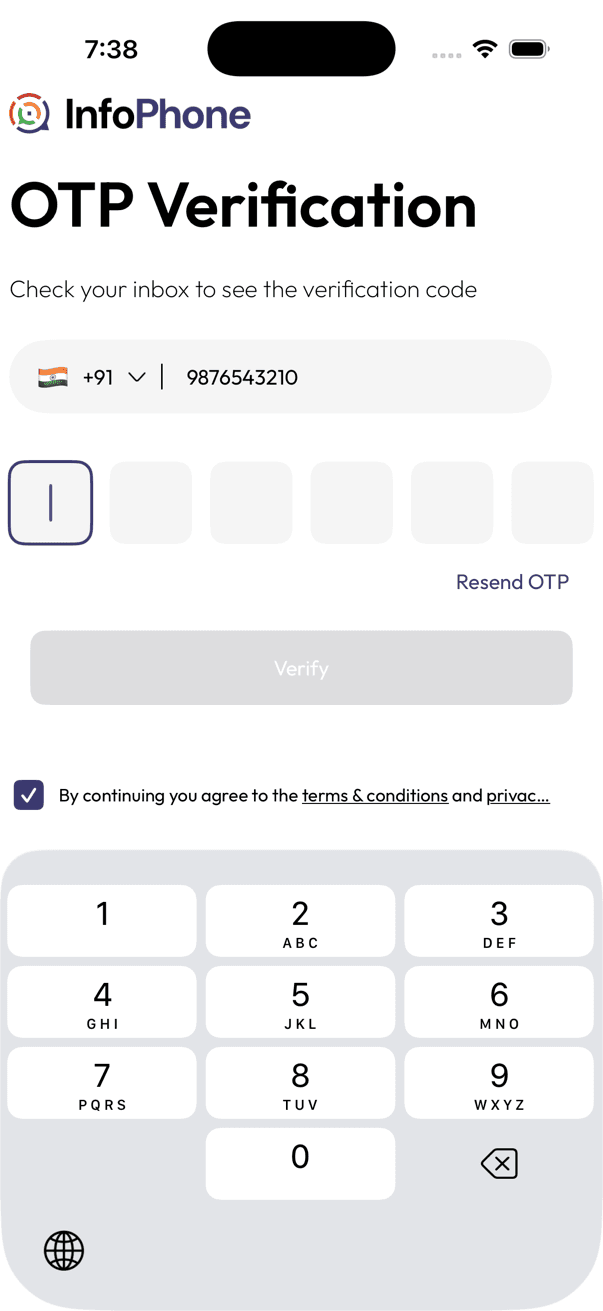
Verify the code
- Enter the 6-digit code we send you by SMS.
- Tap Verify.
- If nothing arrives, wait for the timer to run out and tap Resend OTP.
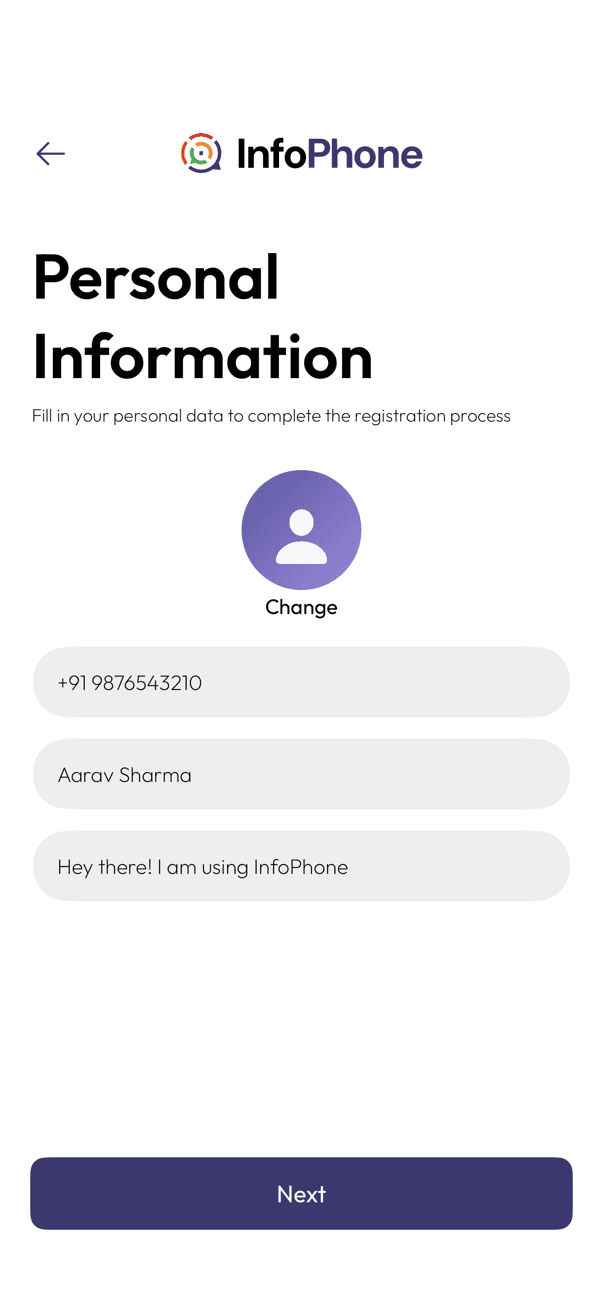
Set up your profile
- Add a profile photo if you want one — you can skip it.
- Enter the name your contacts will see.
- Write a short about line, or keep the default.
- Tap Next.
Allow permissions
InfoPhone then asks for Contacts, Notifications, Microphone and Camera. Contacts is what shows you who else is already here; the rest are for alerts, calls, and photos. Allow the ones you need — you can change any of them later in your phone settings.
If the code does not arrive
- Check that the number you typed is the one in the phone.
- Make sure you have signal — the code arrives by SMS, not over the internet.
- Wait for the timer to run out, then ask for a new code.
Related articles
Was this article helpful?