


InfoPhone logo
HomeAbout usFAQ
Login/ Signup
Get it on Google PlayDownload on the App Store
InfoPhone logo

Connect. Call. Communicate.Anywhere, Anytime.

Quick Links

  • Home
  • About us
  • Help Centre
  • FAQ's

Features

  • Group Chats
  • Send Reactions
  • Personalised Profiles
  • Share Seamlessly

Also available on

  • Get it on Google Play
  • Download on the App Store

© Enso Webworks Private Limited 2026. All Rights Reserved.

  • About Us
  • Privacy Policy
  • Terms & Conditions
  • Legal & User Agreement
  • Community Guidelines
  • FAQs
Help Centre/Settings/Backup settings

Backup settings

A backup saves your chat history and media to InfoPhone’s secure server, so you can restore them if you switch phones.
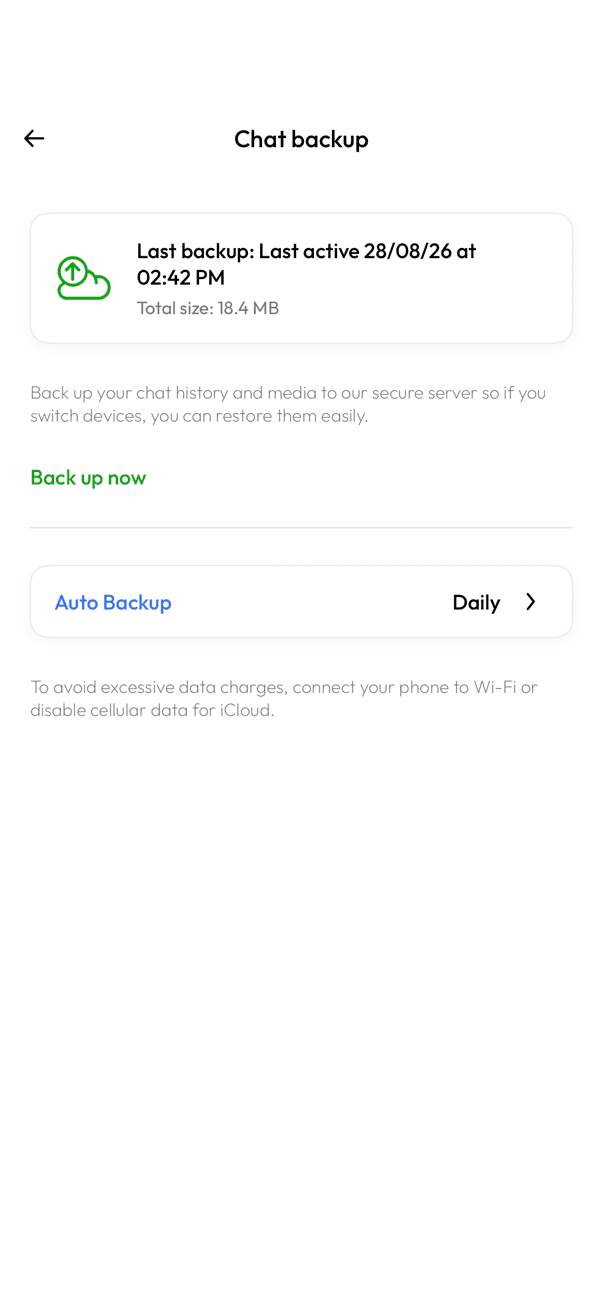

InfoPhone Chat backup screen with Back up now and Auto Backup
Chat backup screen
InfoPhone Auto Backup screen with Daily, Weekly, Monthly, and Off options
Set the backup frequency

Back up your chats

  1. Open Settings, then Chats, then Chat backup.
  2. Tap Back up now to back up right away.
  3. Or tap Auto Backup and choose Daily, Weekly, Monthly, or Off.

Worth knowing

  • The Chat backup screen shows the date and total size of your last backup.
  • Connect to Wi-Fi, or turn off cellular data, to avoid data charges — backups can be large.
  • A backup can only be restored onto the same phone number it was made with.
  • The restore offer only appears while you are setting up a new phone.

Was this article helpful?

On this page

  • Back up your chats
  • Worth knowing

Was this article helpful?